
 SQL Server has supported write enabled cubes for over 10 years, but things have just got a whole lot better with Excel 2010 (and SQL Server 2008). You can now browse and update a write enabled cube in Excel without any add-ins and without writing any code.
It's quite easy. Just right click on the partition (in the Partitions tab of the cube editor) and select Writeback settings. You can just take the default settings. Interestingly, the storage mode does not need to be ROLAP, so we get good performance without operational complexity.
Now, simply open Excel 2010, connect to the cube, and enable "What-If Analysis". This is a button in the Tools section (next to PivotChart and OLAP Tools).  Now you can write over any of the cells in the cube. The numbers you have changed will have a little purple triangle in the bottom right corner. When you want to write these back simply click the "Publish Changes" button under the "What-If Analysis" button. Excel will "distribute" your updates according to the settings you have asked for.
 Now you can write over any of the cells in the cube. The numbers you have changed will have a little purple triangle in the bottom right corner. When you want to write these back simply click the "Publish Changes" button under the "What-If Analysis" button. Excel will "distribute" your updates according to the settings you have asked for.
Excel has a Settings button under "What-If Analysis", which allows you to control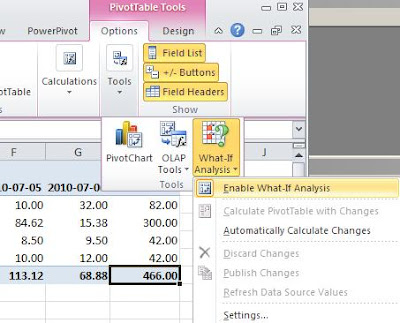 how values are spread, when you enter at a higher level than the cube granularity. For example, you could enter a number for the whole of 2010 and it will spread the amount across all periods based on whether you want an even spread and whether you want the updates to be incremented based on the old numbers.
 how values are spread, when you enter at a higher level than the cube granularity. For example, you could enter a number for the whole of 2010 and it will spread the amount across all periods based on whether you want an even spread and whether you want the updates to be incremented based on the old numbers.
Excel does not natively support the insertion of new dimension members, which would have been a nice feature for some applications.
Operationally, I don't think it is so important to migrate the writeback data to the main partition, since the writeback partition is typically MOLAP. However, it would not be difficult to move the data over in an SSIS package on a scheduled basis.

Of course, you can restrict read and write access rights based on roles, so, for example, the Australian users can only update the Australian numbers.
It now really is easy to set up an updateable cube and make available to users with Excel 2010.


